HW Guide: Creamsource - Vortex
In This Article

The Creamsource Vortex has a number of ways to receive DMX data, and to repeat that DMX data to other fixtures. One convenient setup is to connect Slyyd to a Vortex fixture using LumenRadio BLE, then have the Vortex repeat that DMX data to other fixtures using CRMX. This setup doesn’t require any additional networking hardware, just Slyyd and a Vortex. This guide will detail how to connect to a Vortex using BLE, and setup the Vortex as a CRMX transmitter.

Configuring the Vortex to Receive BLE
The Vortex needs to have BLE enabled before establishing a BLE connection with Slyyd. To do so:
- Navigate to the menu on the Vortex fixture’s display.
- Open the ‘Link’ menu, then choose ‘CRMX Settings’.
- Make sure the ‘CRMX Enabled’ checkbox is checked, along with the ‘BLE Enabled’ checkbox.
.JPEG.jpeg)
Configuring the Vortex as a CRMX Transmitter
From CreamOS V2.5 onwards, it is possible to use the Vortex as a CRMX transmitter. It will automatically forward any incoming DMX, sACN or Bluetooth DMX data over CRMX. Perfect if you don’t have a CRMX transmitter on hand!
To use TX mode
- Make sure the Vortex is in CRMX Transmitter Mode (LINK->CRMX Settings->Mode-> Transmitter).
- Initiate the linking process by selecting “Transmitter Link”. Any unlinked receivers will connect to this Vortex within around 10 seconds.
- To force all receivers to disconnect from this Vortex, hold down the LINK button (or select LINK->CRMX Settings->CRMX Unlink)
Creating a BLE Connection within Slyyd
A BLE Connection can be established during project creation, or afterwards from the settings menu of a project.
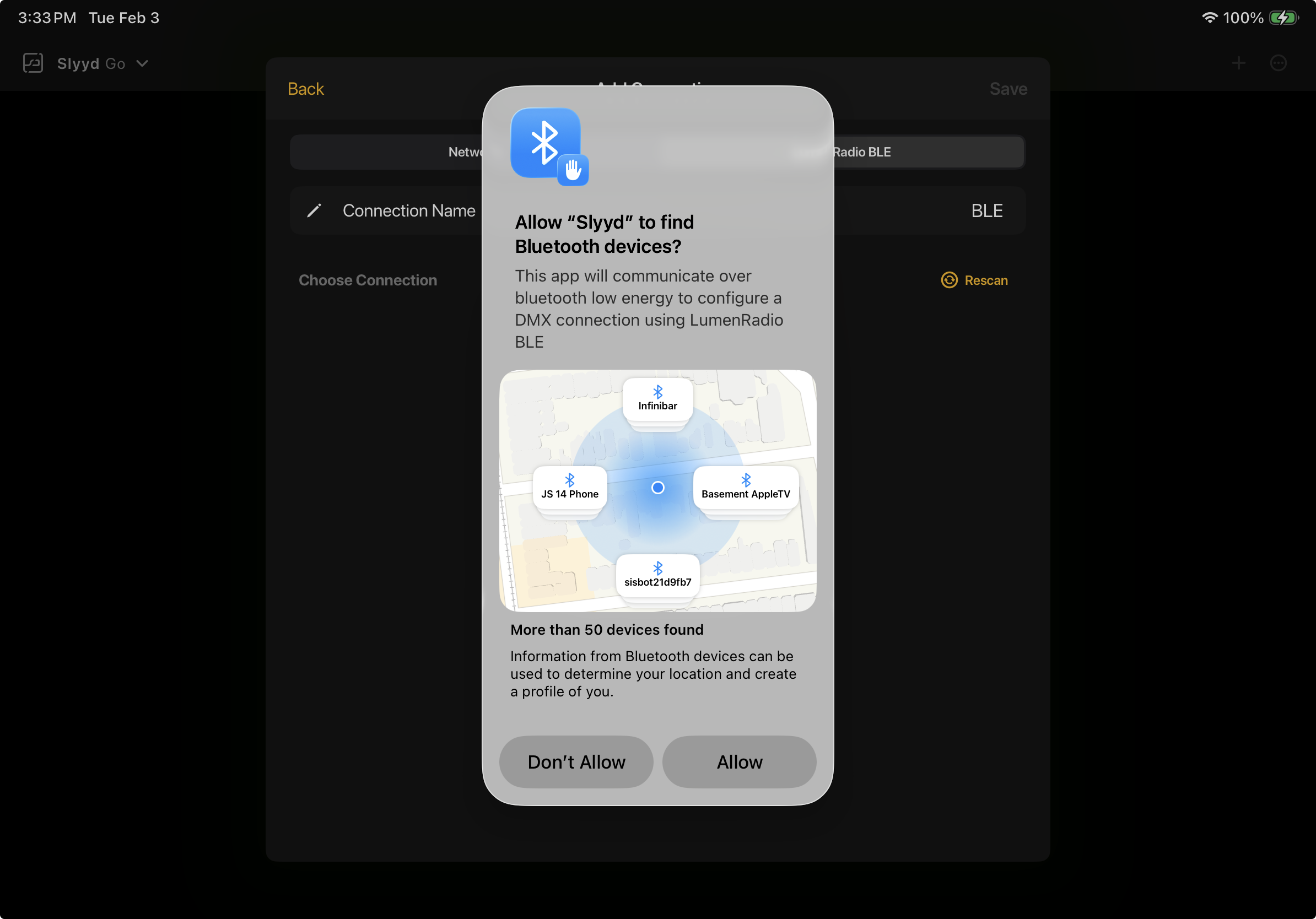
When creating a new project, tap ‘Add LumenRadio BLE’ to start. If this is the first time creating a BLE Connection, Slyyd will need permission to use Bluetooth, so make sure to choose ‘Allow’ when prompted.
A list of available BLE devices will then be shown on the Add Connection screen. The Vortex should appear in the list with a prefix of ‘CSV’ (Creamsource Vortex).
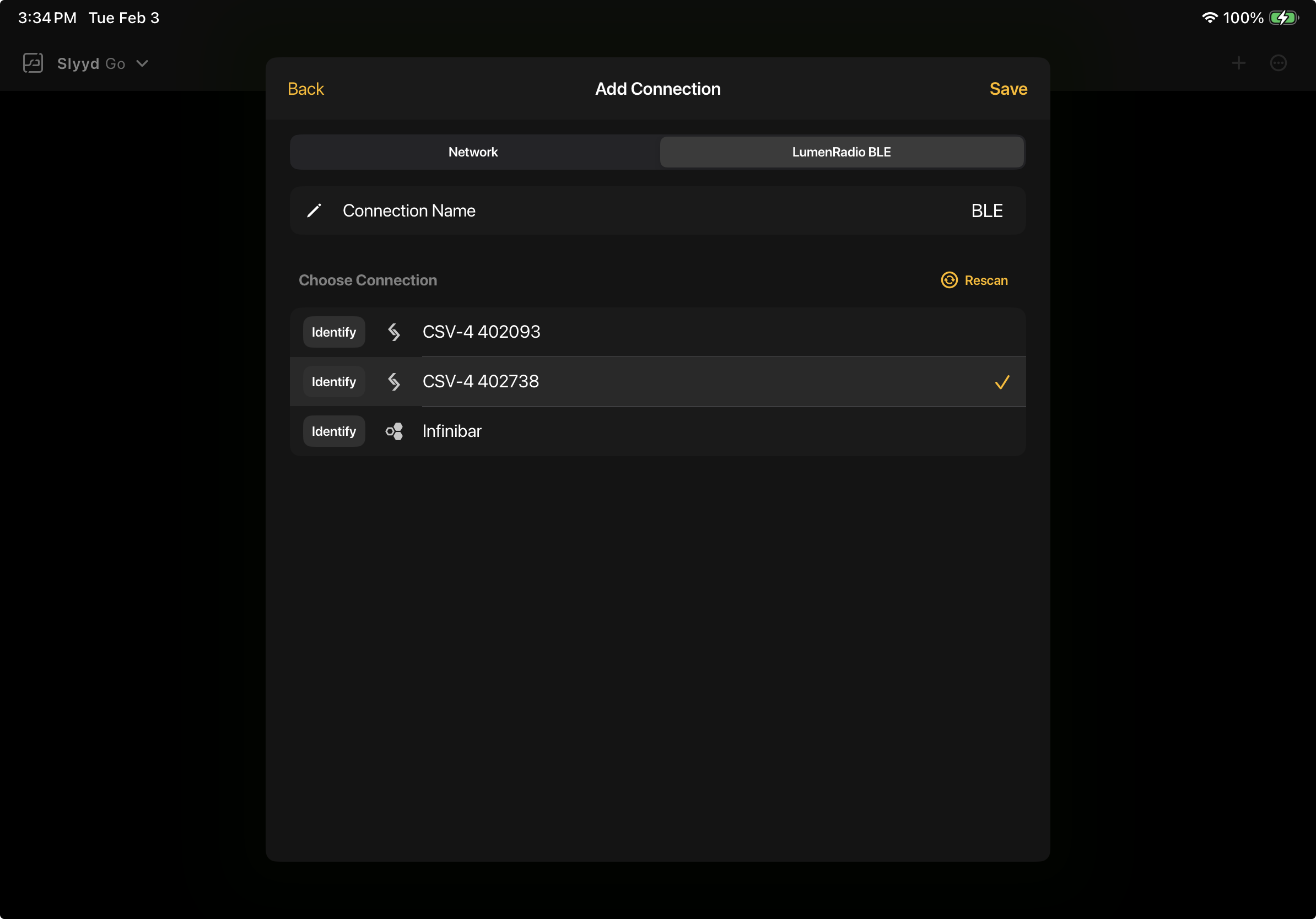
If there are multiple BLE devices listed, tap ‘Identify’ next to a device, causing it to flash. It is recommended to choose the device that will be closest to Slyyd for a BLE connection, considering Bluethooth’s range is limited. Tap the desired fixture to connect. The Connection name can be edited as a reminder of which fixture it is connected to, for example.
Tap ‘Save’ to finish creating the connection. After the connection is established and the project created, fixtures need to be patched into the Connection. For help with patching, see the Patching and the DMX Map article.
DMX Smoothing
LumenRadio BLE responds slower than an sACN connection. Therefore it can be helpful to enable DMX smoothing on the Vortex in order to produce smoother transitions. DMX smoothing can be enabled from the Fixture tab of the Slyyd App for Vortex profiles that support Control Channel. For more information on control channel, see the Control Channel article.