Connections
In This Article

What are Connections?
Connections are how the Slyyd App communicates with lighting fixtures. Each connection contains 1 DMX universe (512 addresses) worth of lighting data. Fixtures in Slyyd must be patched into a Connection in order to be controlled. There are currently two types of Connections to choose from: sACNNetwork and LumenRadio BLE.
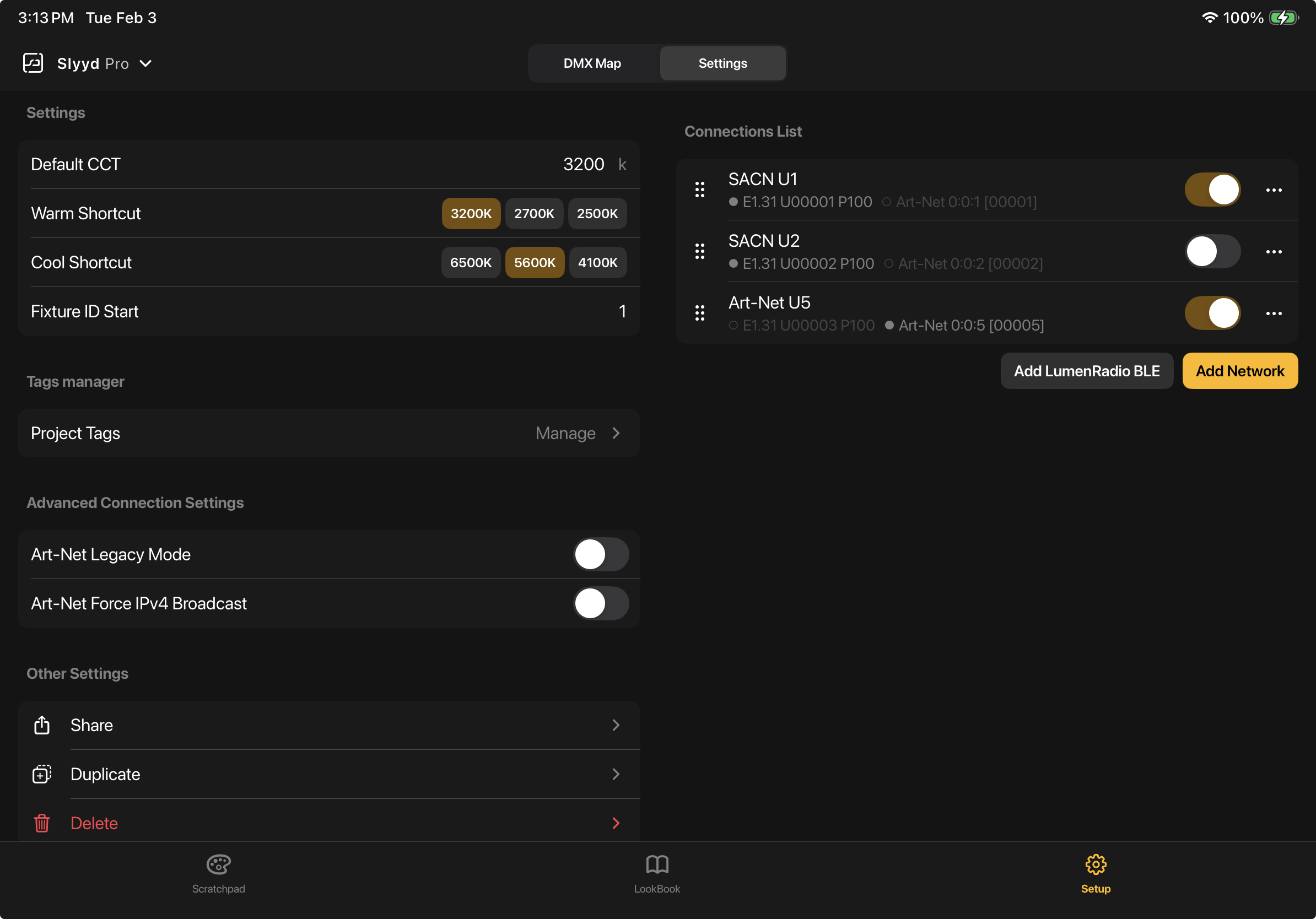
Slyyd Go can have 1 active Connection, Slyyd Plus can have 2, and Slyyd Pro can have 4 active Connection.
Network: sACN and Art-Net
A Network type Connection is the most robust way to transmit lighting data over a computer network. Slyyd supports two different protocols: sACN (E1.31), and Art-Net. Each Network type Connection can output either sACN, Art-Net, or both at the same time.
The first time a user tries to patch a fixture after installing the app, they will be presented with a dialog requesting permission to connect to devices on the local network. It is very important that ‘Allow’ is selected, otherwise the app will be unable to send Network data to other devices.
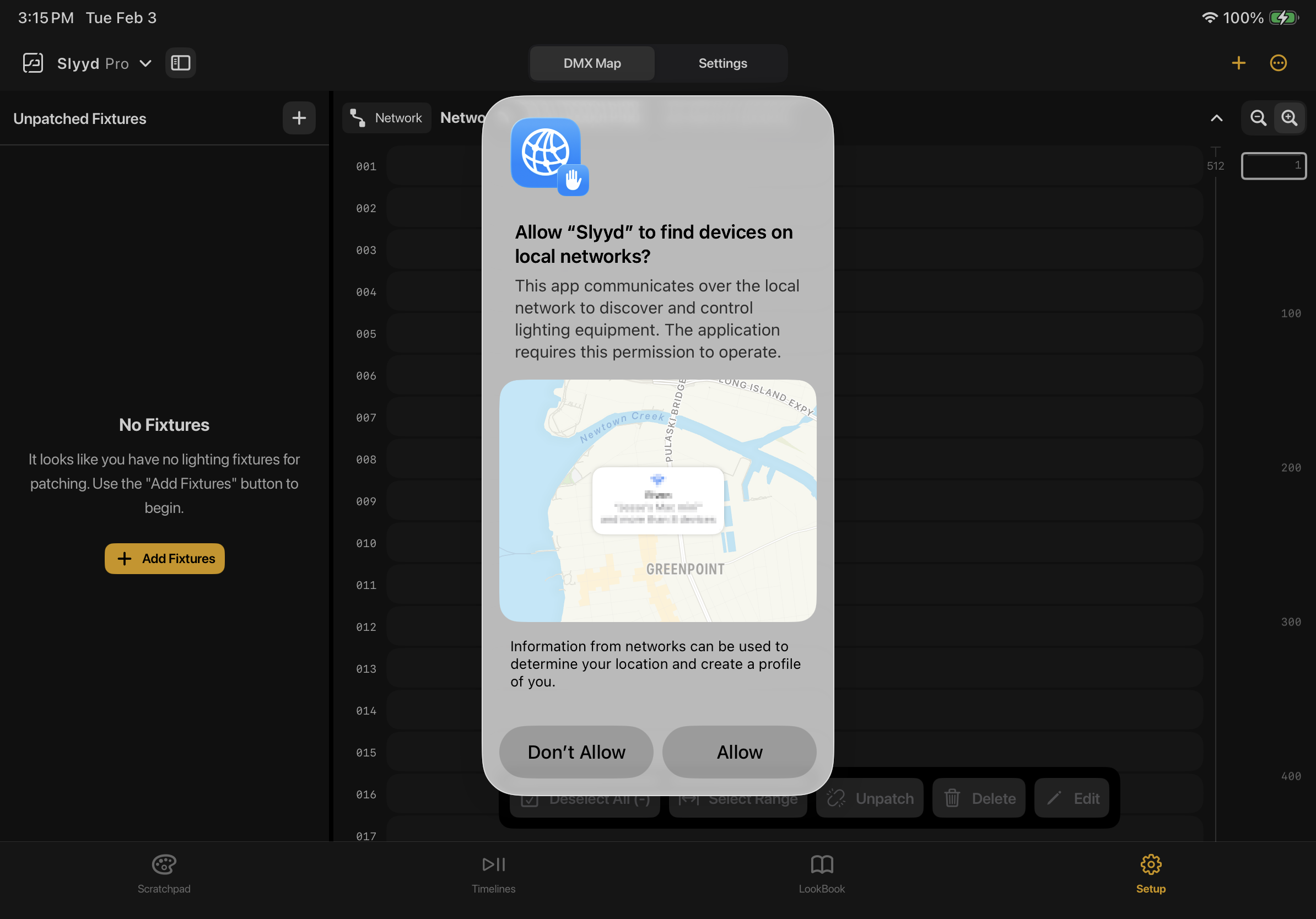
If ‘Don’t Allow’ is selected, the setting will need to be turned on from within Apple’s settings app.
Wi-Fi
To transmit Netowrk data over Wi-Fi, connect the iPad or iPhone running Slyyd to the desired Wi-Fi network (SSID) by navigating to Apple’s settings app, then tapping ‘Wi-Fi’ to bring up a list of available networks. Once connected to the appropriate Wi-Fi network, the app will start transmitting sACN data.
Ethernet
To transmit Network data over an ethernet connection, an ethernet breakout is required. For more details, see the Ethernet Adapters article. It may take up to 3 seconds for the app to recognize a newly connected ethernet connection, after which Slyyd will start sending Network data to the new interface.
An 'Ethernet Connection' also includes some USB-C devices like the FTS Cerise, which connect over USB-C but show up as an ethernet connection on an iPad or iPhone.
Adding a Network Connection
To add an additional Netowrk Connection after project creation, navigate to the Settings tab of the Setup screen. Tap the 'Add Network' button, which will bring up the Add Connection screen. This screen contains a number of settings:
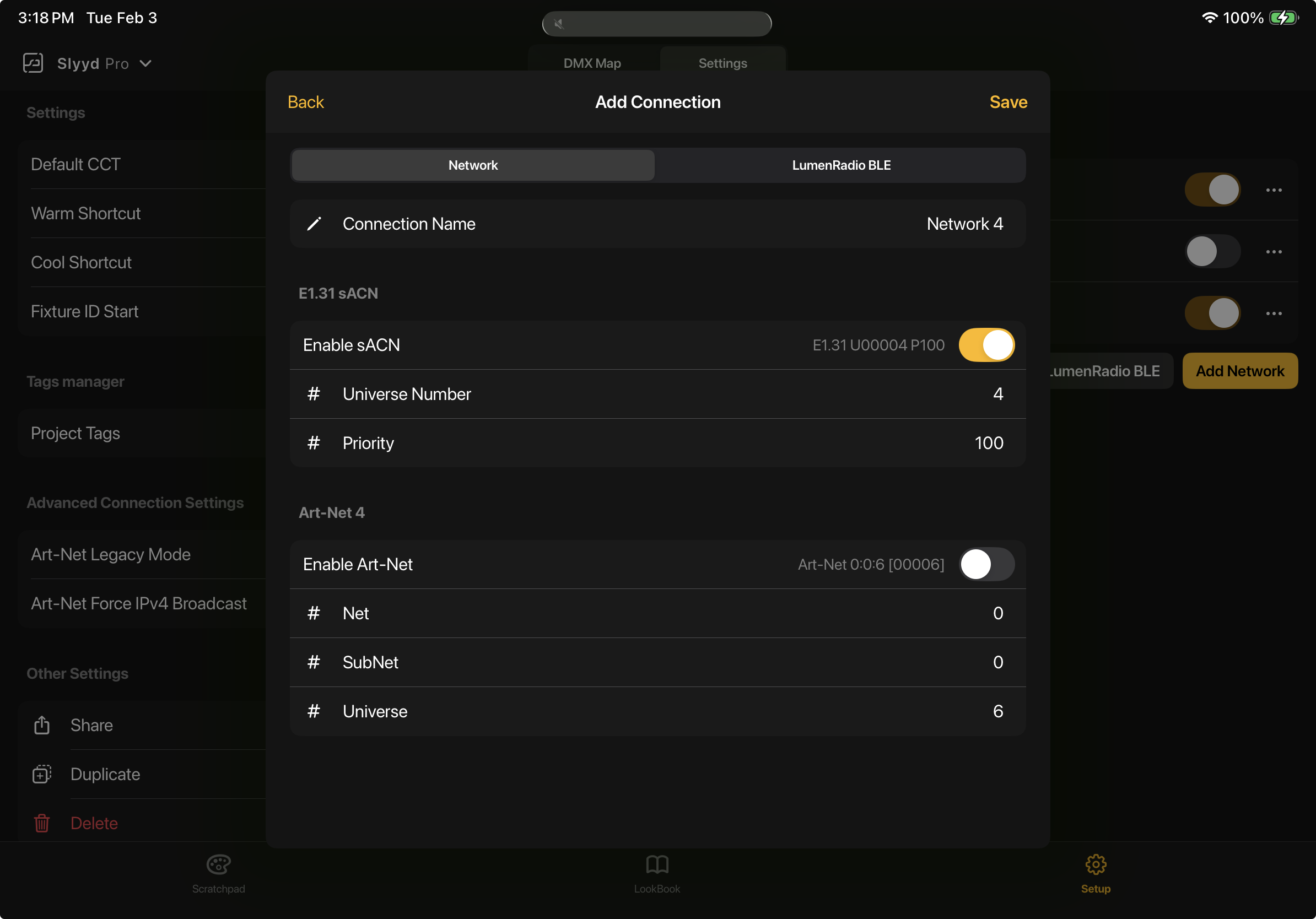
Connection Name - A customizable title for a connection.
E1.31 sACN
Enable sACN - Enables or disables sACN output for the Connection.
Universe Number - Sets the sACN universe number for the Connection. Must be a number between 1 and 63999, and must be different than any other sACN universe numbers in the Slyyd project. NOTE: The sACN universe number does not have to match the Art-Net universe.
Priority - Sets the priority for the chosen sACN universe, which helps when merging sACN streams transmitting from separate devices. Must be a number between 0 and 200.
Art-Net 4
Enable Art-Net - Enables or disables Art-Net output for the Connection. A preview of the decimal notation for the selected universe is shown next to the toggle, which combines the net, subnet, and universe into a single number universe. NOTE: Slyyd considers Net:0 SubNet:0 Universe:0 as universe 0, where some devices will consider that universe 1.
Net - Sets the net.
SubNet - Sets the subnet.
Universe - Sets the universe.
On the Settings tab, there are two additional toggles that relate to Art-Net:
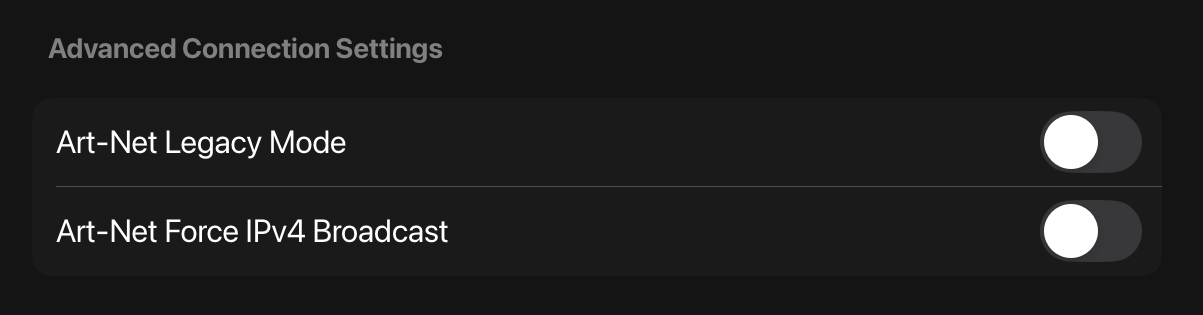
Art-Net Legacy Mode - Disables ArtPoll and ArtPollReply packets, and forces broadcast of all Art-Net universes. Increases network traffic, but can be helpful when troubleshooting, or as a workaround when dealing with older hardware.
Art-Net Force IPv4 Broadcast - Forces all Art-Net Connections to broadcast instead of unicast when toggled on. This increases network traffic, which is why it's left off by default, but it's a useful trouble shooting tool and workaround.
Art-Net™ Designed by and Copyright Artistic Licence
A name and universe number are pre-filled when creating a new Network Connection. Changing these defaults is not mandatory.
To use fixtures with the new Network Connection, make sure that the new Connection is selected when patching.
LumenRadio BLE
LumenRadio BLE can be used to transmit DMX data without the need for networking hardware, which can be fast and convenient for simple setups. For example, a Vortex fixture is capable of receiving DMX information directly from Slyyd over LumenRadio BLE, and can then repeat that DMX data over CRMX to other fixtures. However, LumenRadio BLE Connections do have limitations compared to other wireless forms of communication. They have a shorter range, and might lag a bit. For these reasons, it’s best to use LumenRadio BLE for smaller setups where smooth transitions are not necessary. Fixtures that support DMX smoothing help reduce the appearance of the lag issue. For example, Vortex fixtures support DMX smoothing, which can be turned on from within Slyyd using the Control Channel feature.
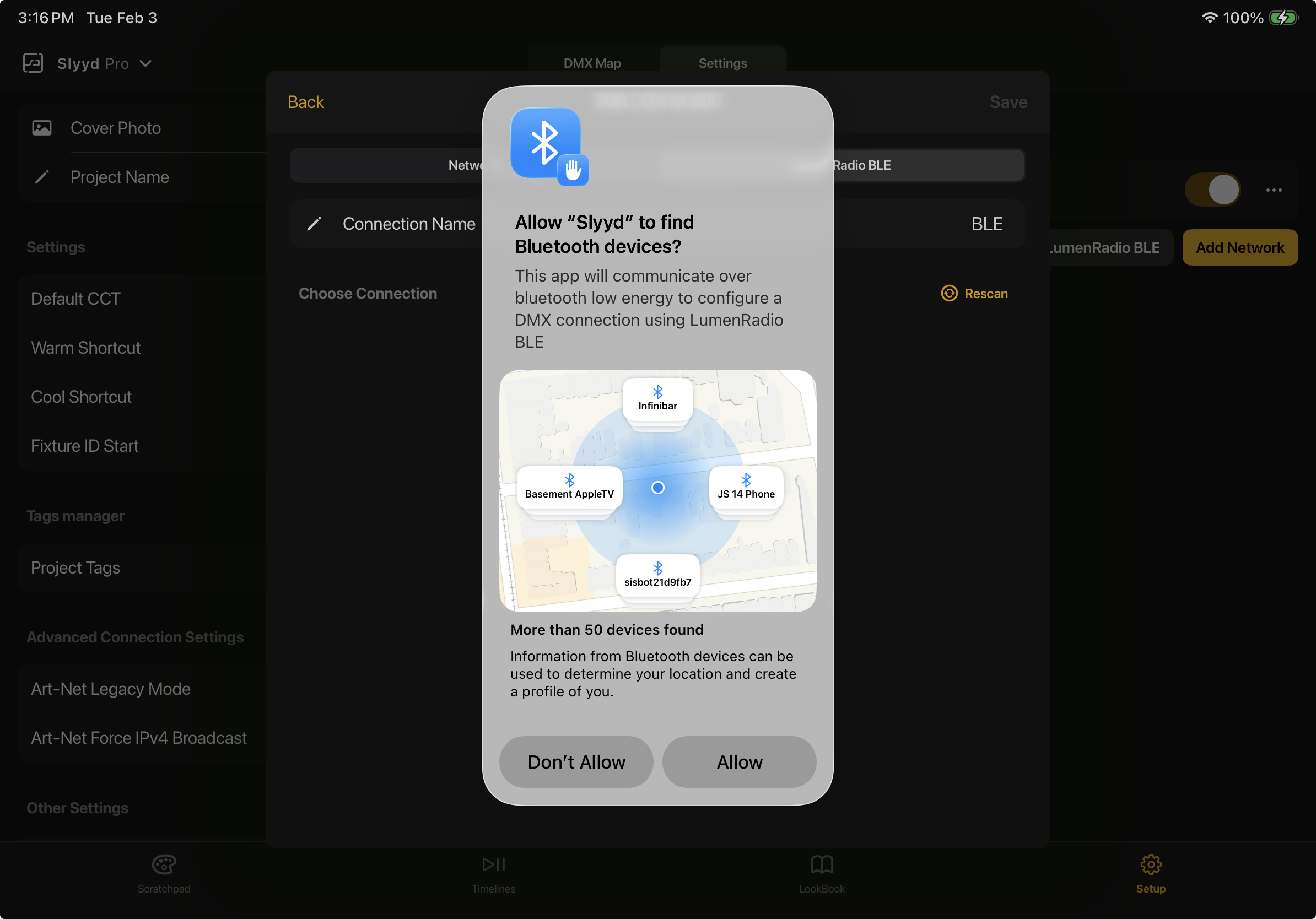
The first time a user tries to create a BLE Connection they will be presented with a dialog requesting permission to use Bluetooth. It is very important that ‘OK’ is selected, otherwise the app will be unable to connect to other BLE devices.
If ‘Don’t Allow’ is selected, the setting will need to be turned on from within Apple’s settings app.
Adding a LumenRadio BLE Connection
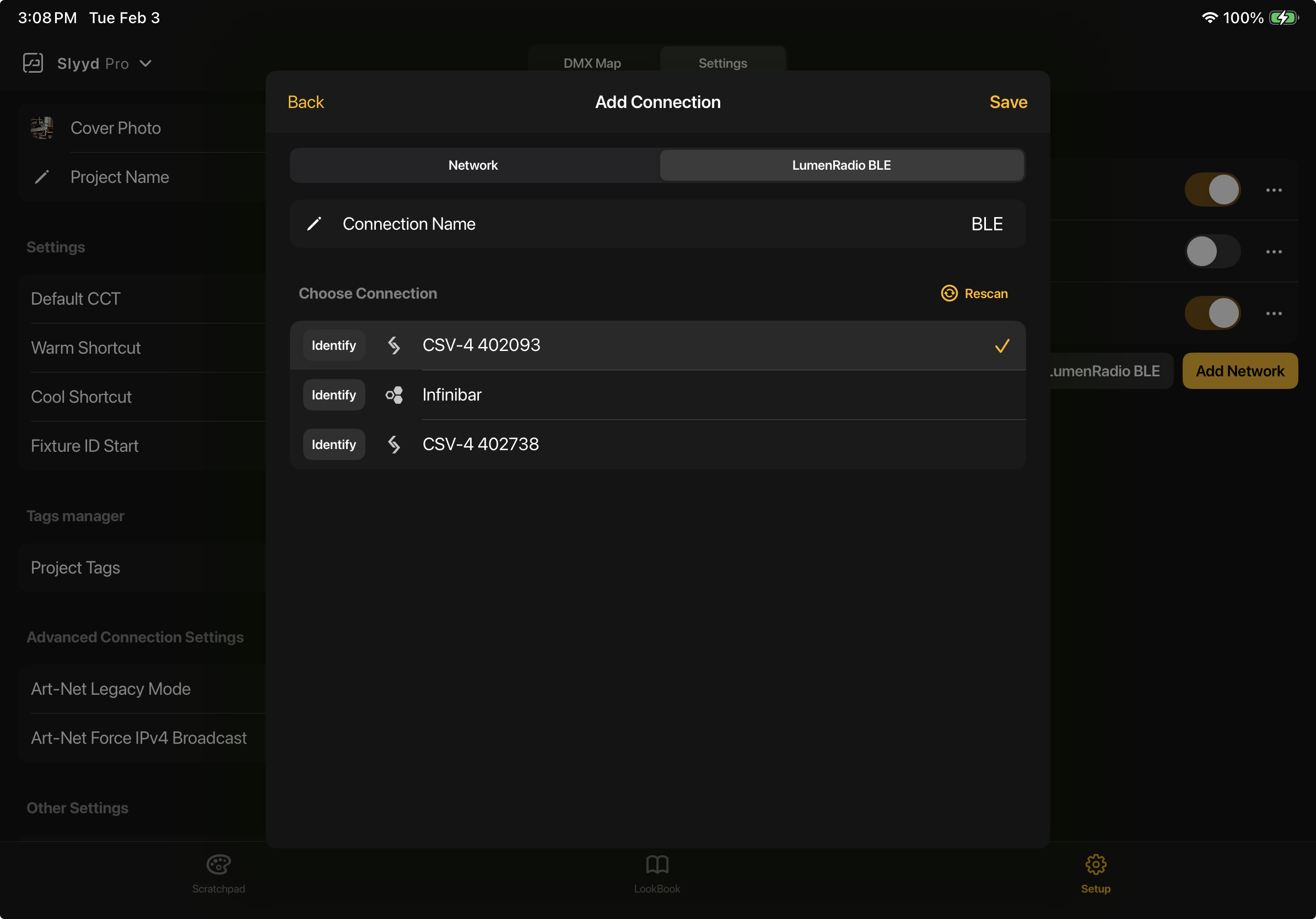
To add a LumenRadio BLE Connection after project creation, start by making sure LumenRadio BLE is enabled on the receiving device. Then, after navigating to the Settings tab of the Setup screen, tap ‘Add LumenRadio BLE’. If the device is on and listening, it should appear in the list below.
If multiple devices are found, the Identify button can be used to flash the selected device (if it’s capable of flashing). To finish creating the Connection, select the desired device and tap 'Connect'.
To use fixtures with the new BLE Connection, make sure that the BLE Connection is selected when patching.
Sharing a Project with a LumenRadio BLE Connection
The Bluetooth pairing that takes place when creating a LumenRadio BLE Connection will not automatically transfer when sharing a project to a new device. To share a project with a LumenRadio BLE Connection, the recipient will need to edit the Connection and select the desired BLE device in order to heal the Connection. See the following section for details on how to edit a Connection.
Editing and Deleting Connections
To edit a Connection, tap the three dots button to the right of the Connection and choose ‘Edit’. The ‘Delete’ button can be found in the same place but note that a Project must have at least 1 Connection. Deleting the only Connection is not permitted.
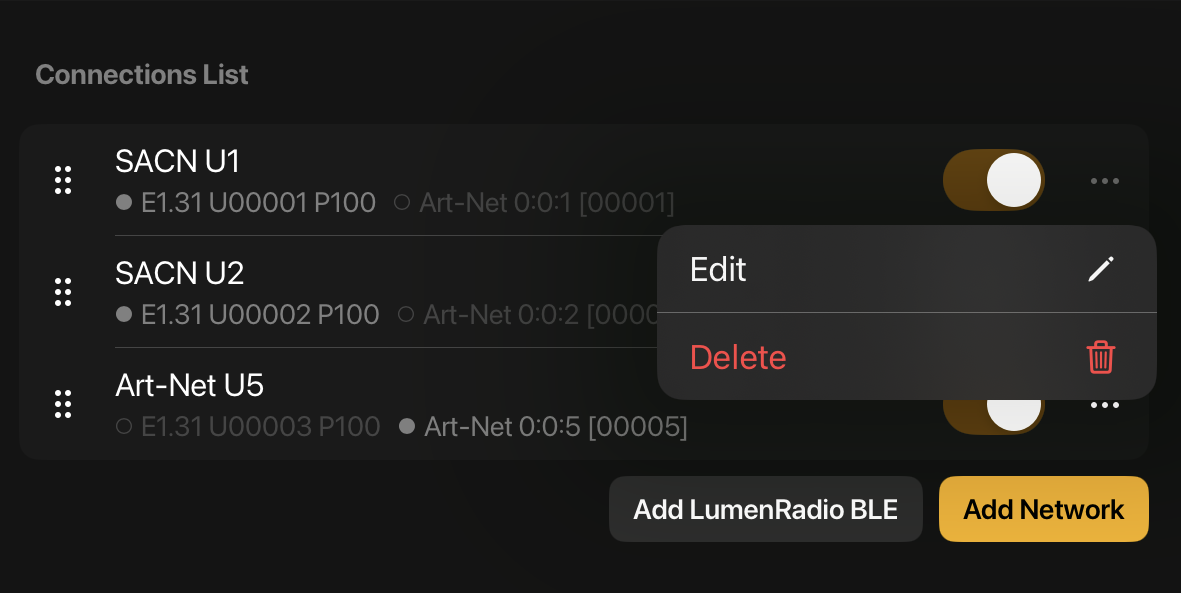
An Network Connection can be turned into a LumenRadio BLE Connection, and vice versa, using the Edit screen. A new BLE-capable device can also be selected if the original is unavailable/inconvenient, or when attempting to heal a broken BLE Connection that was shared from a separate device.