LookStacks
In This Article

What is a LookStack?
A LookStack is a container for a sequential series of Looks (called Pages) that can be played back with individual timing values, or looped indefinitely. Put more plainly, LookStacks can be used to create animated sequences, similar to a traditional cue stack. Since LookStacks live in the LookBook, they can also be used alongside regular Looks, or layered together on top of other Looks and LookStacks.
Creating a LookStack
To create a LookStack, a Look is required. It is not possible to create a LookStack without first starting with a Look. The Look will serve as the first page of the LookStack. Any Look can be turned into a LookStack.
Once the desired Look is ready to be converted into a LookStack, open the Look editor. The New LookStack button is in the bottom right corner of the editor. Pressing this button turns the Look into a LookStack, with the first page containing the fixtures and values from the original Look.
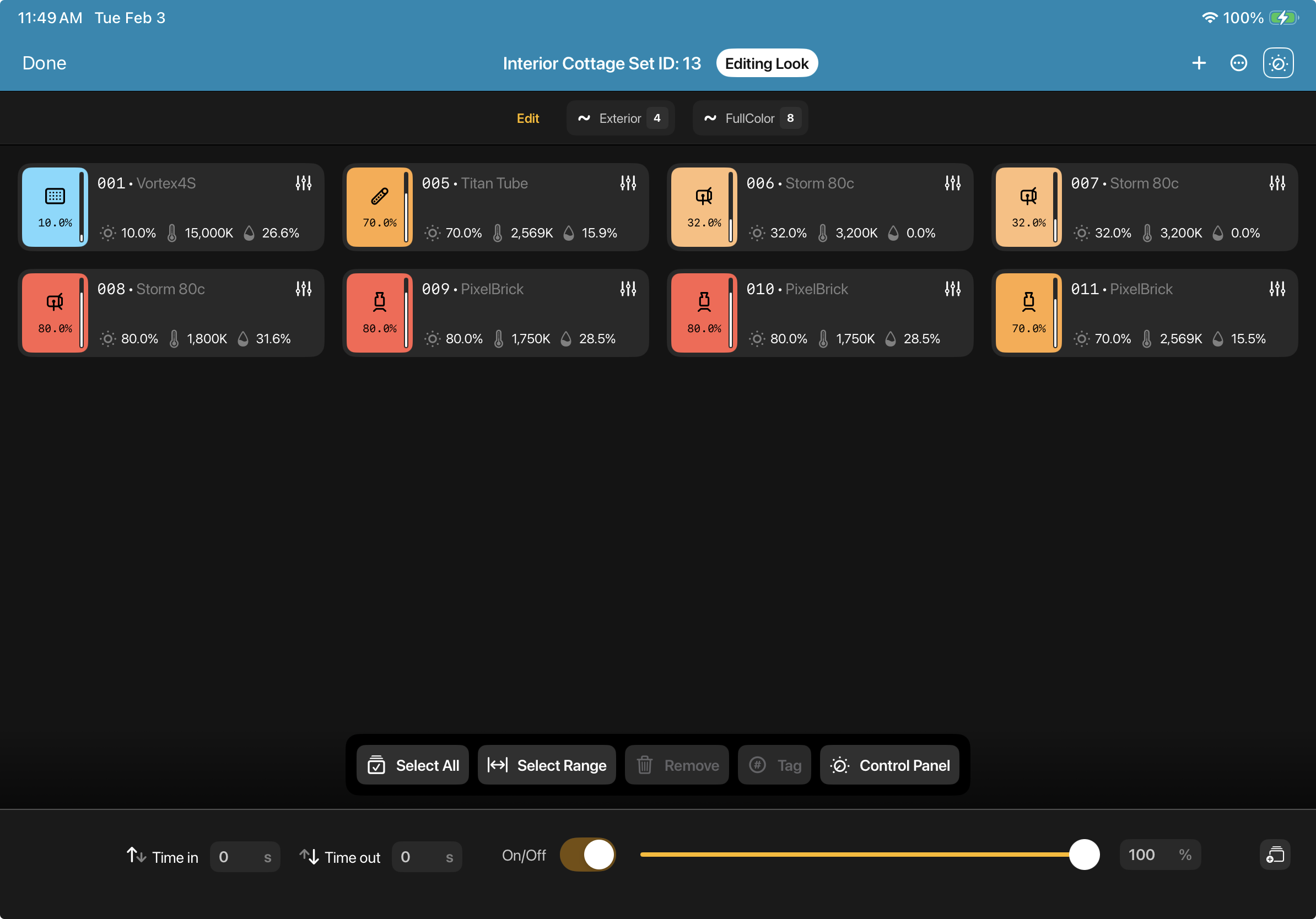
LookStack Editor
The controls for editing color, intensity, and for adding or removing fixtures are exactly the same as they are for a regular Look. The Action Bar, Control Panel, Tags, Color Picker, Swatches, and the Relative Encoder can all be used within the LookStack editor. The differences between the Look editor and the LookStack editor are primarly the Page controls found at the bottom of the screen.
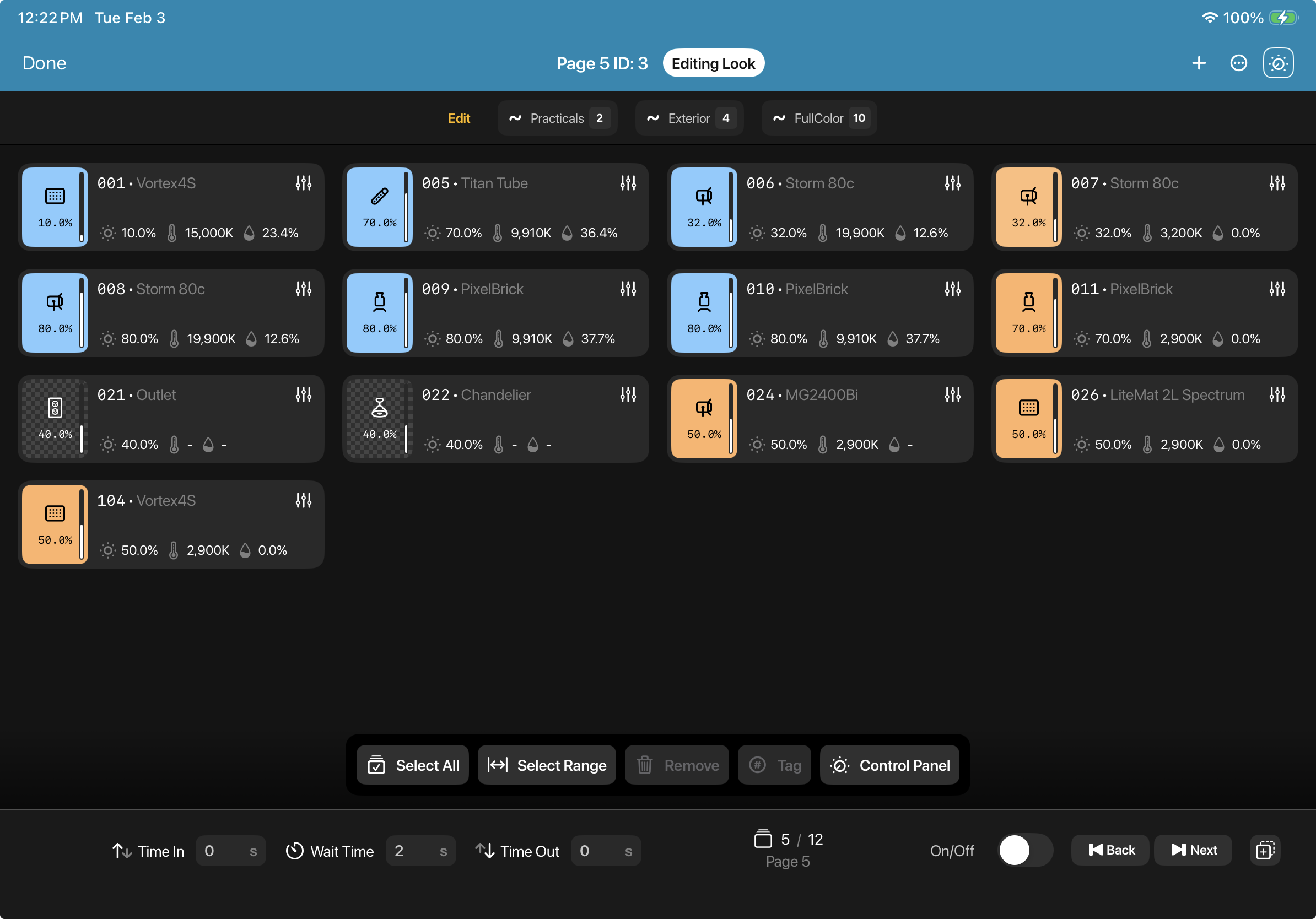
Page Controls
From left to right
Time In - How long it will take the current Page to go from 0% to 100% Page opacity when the LookStack is played or when the ‘Next’ button is used. [Note: Individual Page opacity is separate from the overall Stack opacity]
Wait Time - How long the current Page will remain at 100% Page opacity when the LookStack is played.
Time Out - How long it will take the current Page to go from 100% to 0% Page opacity when the LookStack is played or when the ‘Next’ button is used.
Page Counter - Displays the current Page out of the total Pages. The screenshot above is on Page 5 out of 12. The current Page outputs its values when the LookStack is on.
Page Title - Found below the Page counter. Page titles can be customized in LookStack settings page to reflect what’s contained in the page, whether that’s a scene number or
On/Off Toggle - Toggles the current LookStack on or off. If Stack timing values have been set for the LookStack (separate from Page timing values), this toggle will start a Stack transition using the corresponding Stack Time In or Stack Time Out values.
When a LookStack is off, its contents can be edited without changing the live output. The ‘Next’ button will ignore all Page timing values when a LookStack is off.
Back Button - Changes the current Page to the previous Page. The ‘Back’ button snaps immediately to the values of the previous page, and ignores all Page timing values when the LookStack is on.
Next Button - Changes the current Page to the next Page. Unlike the ‘Back’ button, the ‘Next’ button initiates a transition between the current Page and the next Page using the Page Time Out value of the current Page, and the Page Time In values of the next Page. The Wait Time is ignored, and will instead wait indefinitely, or until the ‘Next’ button is pressed again. In this way, it is possible to run a LookStack manually from inside the editor using the ‘Next’ button. All timing values are ignored when the LookStack is off.
Duplicate Page - Duplicates all values of the current Page (including fixture values and timing values). When pressed, brings up a window with a chance to give the new Page a name, and choose whether to insert the new Page directly after the duplicated Page using 'Insert Next', or send the Page to the very end of the LookStack using 'Insert Last'.
LookStack Controls And Playback
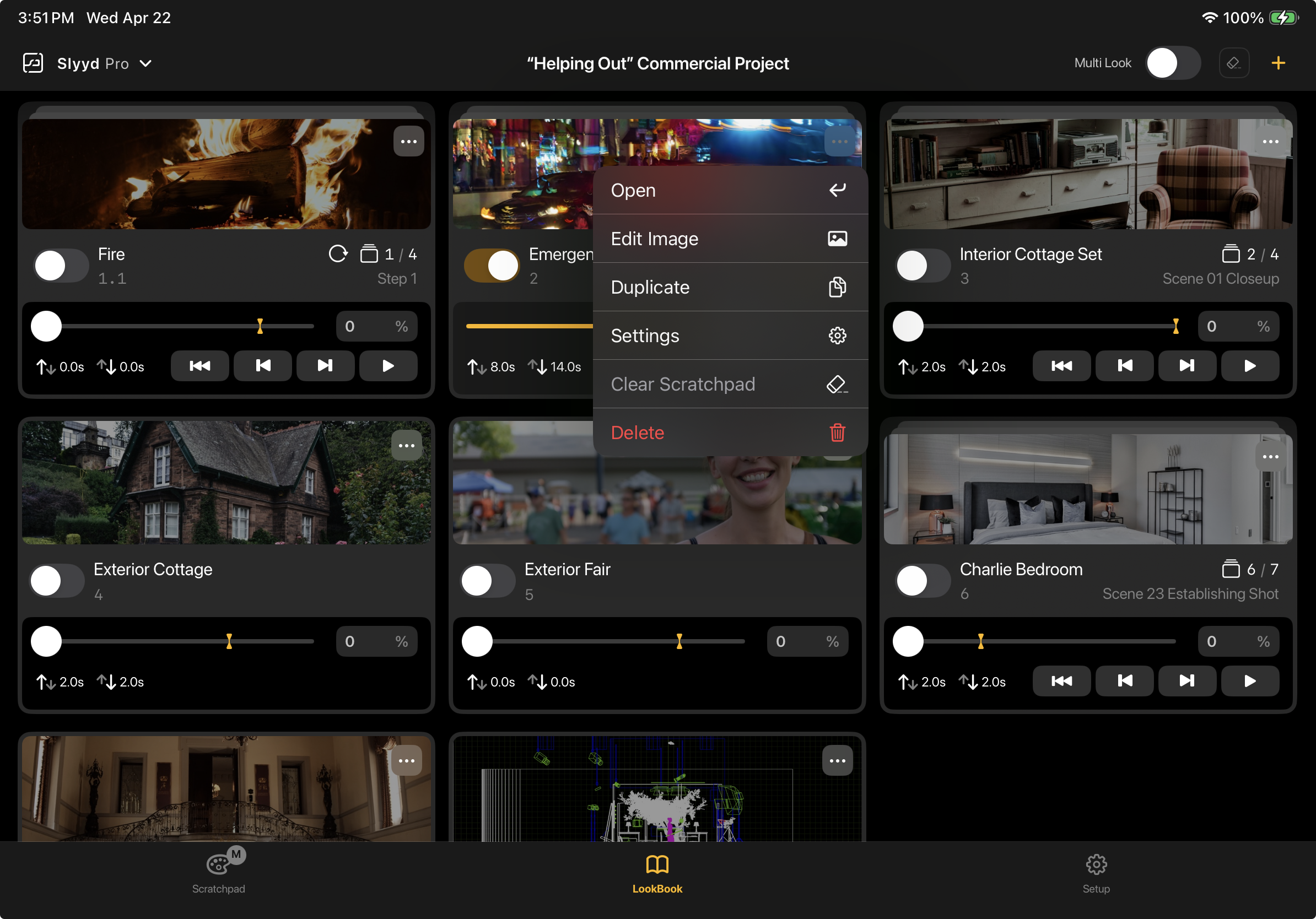
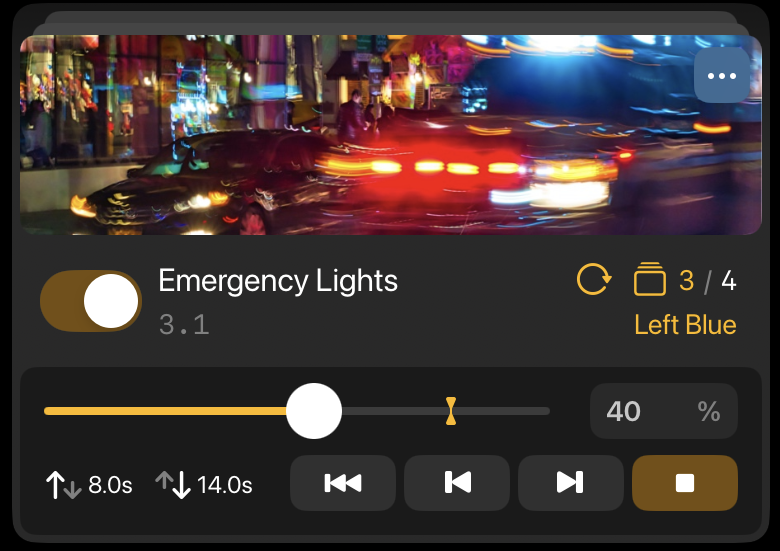
LookStacks on the LookBook share a number of controls with Looks. The three dots button in the top right corner can be used to open the LookStack editor, to duplicate the LookStack, to change the cover image, and to adjust access the LookStack settings.
Opacity
The Opacity Slider functions the same as the Opacity Slider on a Look, and controls how much of the LookStack is mixing with all the other Looks and LookStacks in the LookBook. Individual Pages may be changing and animating within a LookStack, but the Opacity Slider scales the output of all Pages inside. The Opacity Target (the yellow stopper on the Opacity Slider) sets the maximum opacity value when using the on/off Toggle to turn a LookStack on.
Using the on/off Toggle to turn a LookStack off starts a transition from the current opacity to 0% opacity, and lasts the duration set for the Stack Time Out (adjustable within the LookStack settings page). Using the on/off Toggle to turn a LookStack on starts a transition from 0% opacity to the Opacity Target value, and lasts the duration set for the Stack Time In. The Stack Time In and Stack Time Out values are displayed on the bottom left of the LookStack.
Stack Info
The center of a LookStack contains the Stack information. On the left is the Stack Name. Underneath the Stack Name is the Stack Number, which determines where the LookStack is sorted on the LookBook, from lowest to highest. On the right side is the current Page number out of the total Pages. Underneath the Page number is the current Page name.
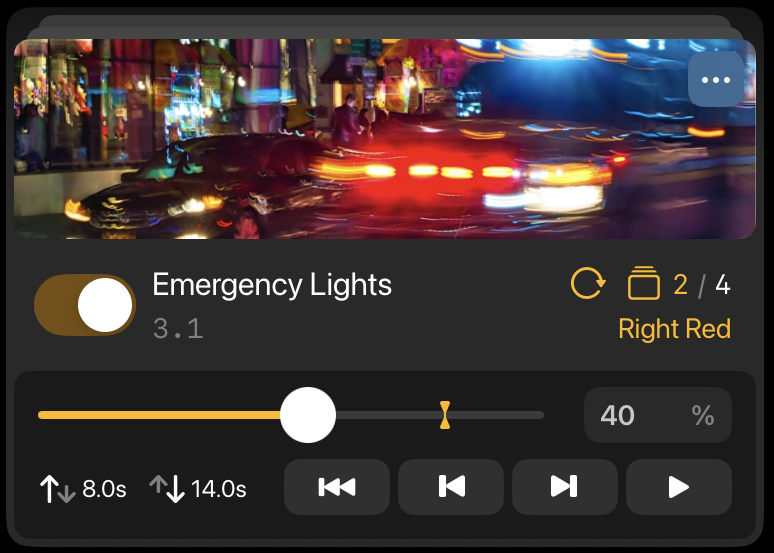
To the left of the current Page number is the Stack Icon. This icon pulses while Pages are transitioning in or out within the LookStack.
If Loop Playback is enabled, the Loop Icon will be displayed next to the Stack Icon.
The Stack information is not editable directly from the LookBook, but it can be edited from the Stack Settings page.
Playback
Four playback buttons are found on the bottom of the LookStack. From left to right, their functions are:
First Page - The First Page button makes Page 1 active, and ignores all Page timing values. This button is a quick way to reset a LookStack to the beginning.
Back Button - Changes the current Page to the previous Page. The Back button switches immediately to the values of the previous page, and ignores all Page timing values if the LookStack is on.
Next Button - Changes the current Page to the next Page. Unlike the Back button, the Next button initiates a transition between the current Page and the next Page using the Page Time Out value of the current Page, and the Page Time In values of the next Page. When a LookStack is playing, pressing the Next button immediately starts the transition to the next Page, skipping over the remaining Wait Time for the current Page. Timing values are ignored when a LookStack is off.
Play/Stop Toggle - When a LookStack is on, pressing Play starts a transition from Page to Page, starting from the current Page, using the Page timing values.
When the last Page is reached, the LookStack stops playing [unless Loop Playback is turned on within the Stack Settings]. If Play is pressed again, a transitions from the last Page to the first Page begins, and continues playing until the last Page is reached again.
Pressing Stop halts playback from moving to the next Page, but all current Page Time Out transitions will continue to complete according to their timing values.
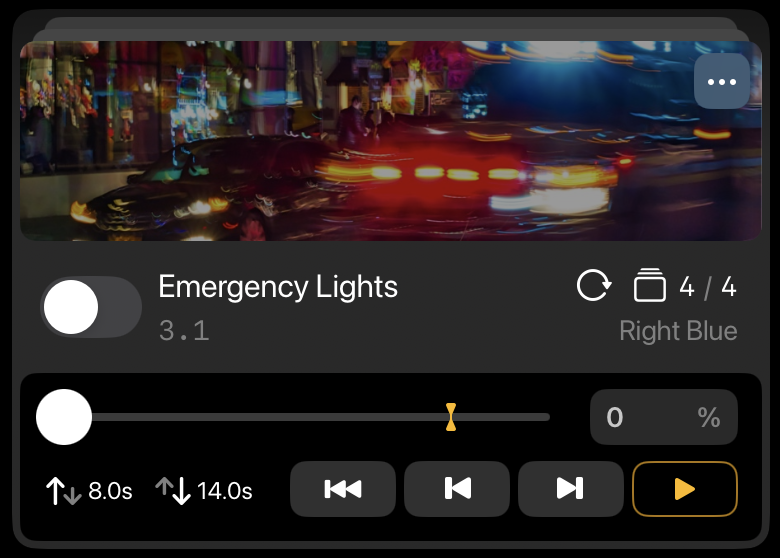
When Play is pressed while a LookStack is off, the Play toggle is put into the armed state [black interior with a yellow border]. When Play is armed, the next time the LookStack is turned on it will immediately start playing, beginning with the current Page. If a LookStack is turned on when Play is not armed, the LookStack will remain on the current Page.
LookStack Settings
The LookStack settings can be reached from within the LookStack editor using the three dots button in the upper right, or from the LookBook by using the three dots button in the upper right of the LookStack.
Stack Settings
The top section of the LookStack settings page relates to the entire LookStack. From top to bottom, their functions are:
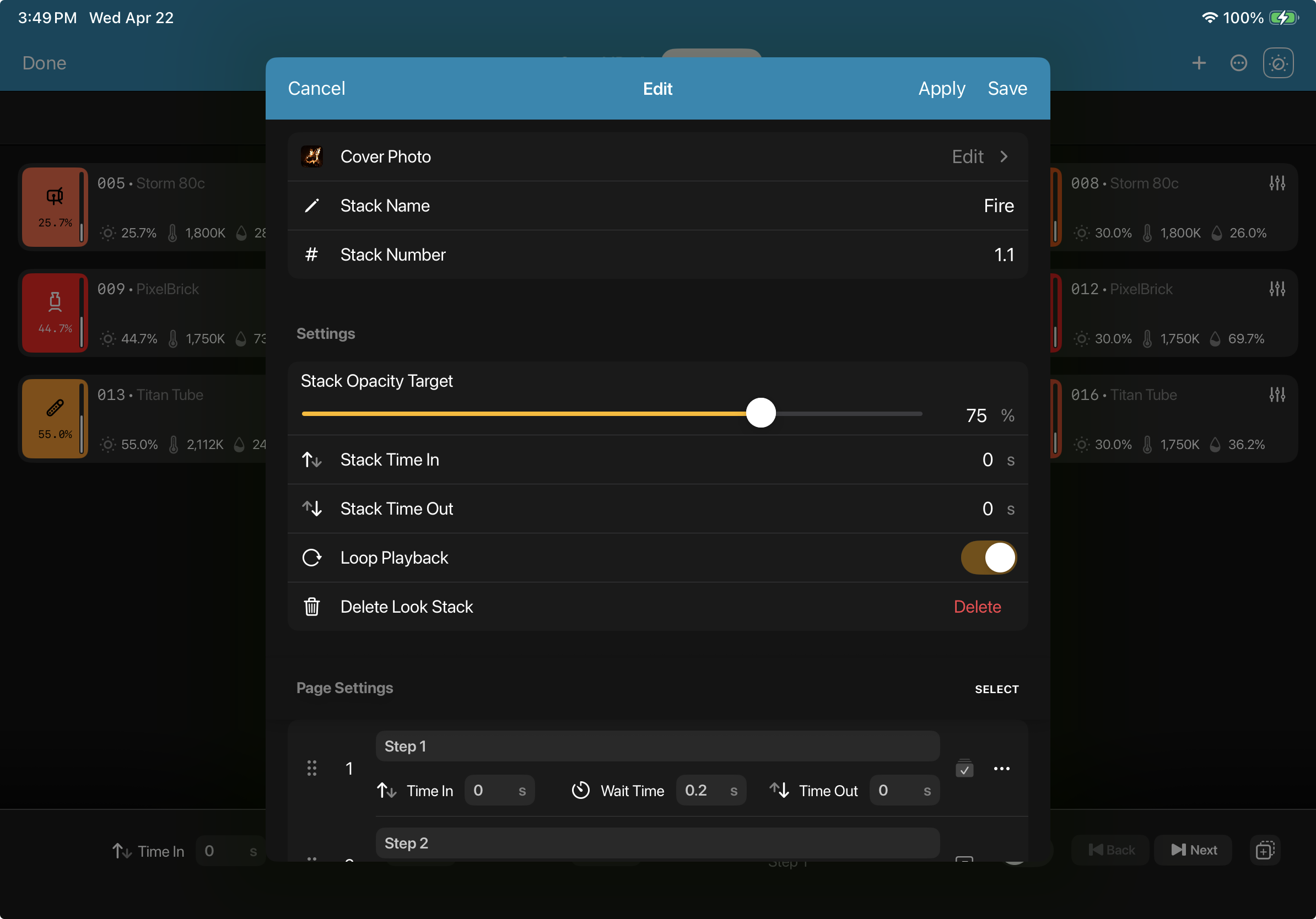
Cover Photo - Same as a Look, a LookStack can be given a cover photo to help remember the contents of the LookStack.
Stack Name - Name for the LookStack [maximum 64 characters]
Stack Number - Determines where the LookStack is sorted on the LookBook, from lowest to highest. Decimal values can be entered to move before or after existing Looks.
Stack Opacity Target - The end point for an opacity transition when toggling a LookStack on. Described in the Opacity section above. [Can also be adjusted by dragging the yellow Opacity Target icon on the Opacity slider]
Stack Time In - How long the Stack Opacity will take to reach the Opacity Target value when a LookStack is toggled on.
Stack Time Out - How long the Stack Opacity will take to reach 0% when a LookStack is toggle off.
Loop Playback - When turned on, a LookStack will continue playing indefinitely, looping back to the first Page when the last Page is reached.
Delete Look Stack - Deletes the entire LookStack and all Pages within it.
Page Settings
Individual Page settings can be adjusted by scrolling down to the Page Settings section. This is where Pages can be renamed, reordered, and deleted. Timing values can also be adjusted here. From left to right, the settings for each Page are:
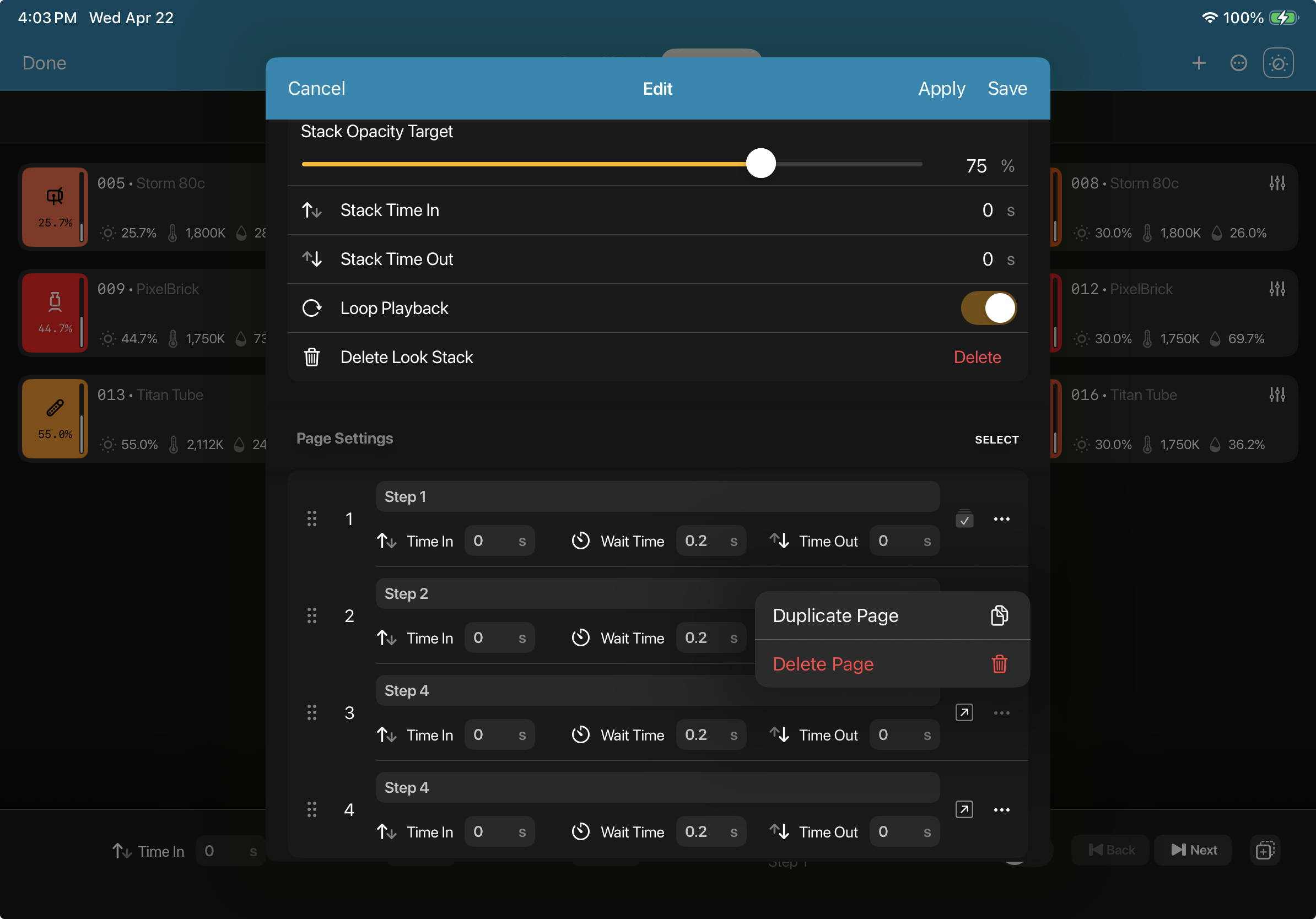
Page Handle - By grabbing the Page Handle (six dots in a rectangle), a Page can be moved either up or down to change its order in the LookStack.
Page Number - Denotes the position of a Page within a LookStack. This number cannot be directly edited, but will update to reflect a Page’s new position when it is moved using the Page Handle.
Page Name - A customizable title for a Page.
Time In - How long it will take the current Page to go from 0%to 100% Page opacity when the LookStack is played or when the Next button is used.
Wait Time - How long the current Page will remain at 100% Page opacity when the LookStack is played.
Time Out - How long it will take the current Page to go from 100% to 0% Page opacity when the LookStack is played or when the Next button is used.
Active Page / Jump to Page - The checkmark icon indicates the current Page of the LookStack. If a Page is not the current Page, tapping the arrow icon will jump to the selected Page, ignoring timing values. This jump will not occur until 'Save' is selected, which closes the LookStack settings, or until 'Apply' is selected, which leaves the LookStack settings open.
Duplicate Page (Three Dots Menu) - Duplicates the selected Page, inserting the duplicate immediately after the selected Page.
Delete Page (Three Dots Menu) - Deletes the selected Page.
Multi Page Edit
Multiple Pages can be edited at the same time using the Multi Edit row. To bring up the Multi Edit row, tap the 'Select' button to the right of the 'Page Settings' header. This will add the Multi Edit row to the top of the list of Pages, and swap out the drag handles next to pages for selection boxes. Pages can be selected and deselected using these boxes, or all at once using the selection box next to the Multi Edit row.

Use the Multi Edit row to adjust page values follows these rules:
Page Name - Sets all selected Pages to the newly input name. If the name includes a number that's not touching any letters, that number becomes tokenized after pressing return. The tokenized number increases by 1 for each selected Page, following the Page Number order. If the name includes more than one number, only the number furthest to the right is tokenized. Tapping the 'x' on the tokenized number dismisses the tokenization, and instead applies the same number to all selected Pages.
Time In - Sets the same Time In value for all selected Pages.
Wait Time - Sets the same Wait Time for all selected Pages.
Time Out - Sets the same Time Out for all selected Pages.