Relative Controls
In This Article

What Are Relative Controls?
Most controls within Slyyd immediately match all selected fixtures to the newly selected value. Relative controls, on the other hand, work a bit differently. Slyyd’s relative controls adjust all selected fixtures by the same amount, based on their individual starting points. For example, if three fixtures are at 10%, 20%, and 30% intensity, and the Relative Encoder is used to increase their intensities by 5, the resulting intensities would be 15%, 25%, and 35%. This is a useful way to adjust multiple fixtures while maintaining the relationship between them. Instructions like “Make everything a little more green” become much easier with relative controls.
Slyyd has two different tools that use the relative behavior: the Relative Encoder and the Color Nudge Buttons.
Relative Encoder
The Relative Encoder can be used to adjust the relative values of many fixtures, but it is also a precise way to smoothly adjust values for a single fixture.
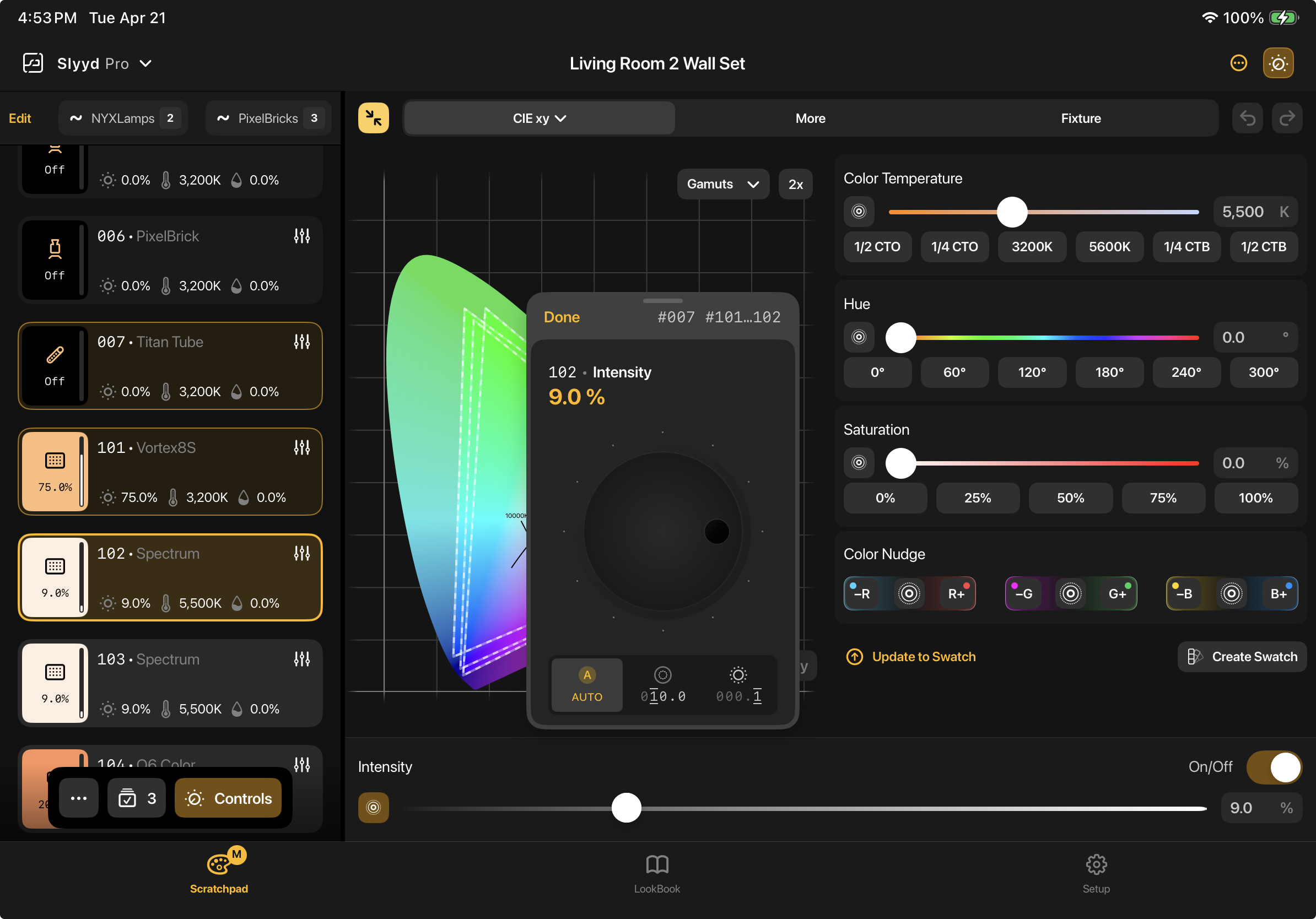
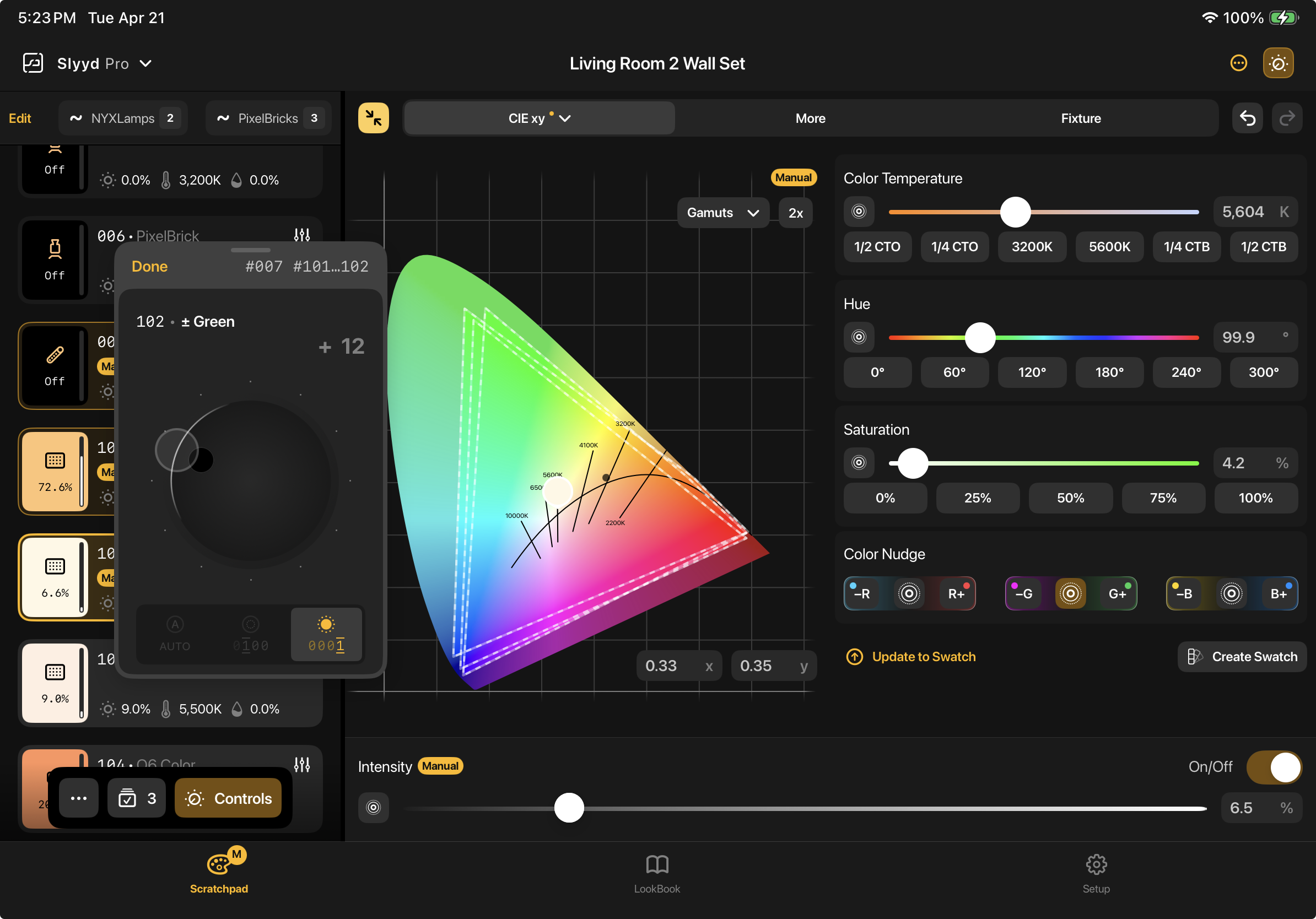
To open the Encoder, tap the Relative Encoder button next to the desired capability slider on the Control Panel. Tapping the Encoder button again will dismiss the Encoder. The Encoder can also be dismissed with the ‘Done’ button on the Encoder itself. Tapping the Encoder button next to another capability’s slider will switch the Encoder to that capability.
On the iPad, the Encoder can be placed anywhere on screen by dragging the handle at the top of the Encoder. Under the handle is a list of all the currently selected Fixture IDs. If this list is too long to fit at the top, the ‘i’ symbol can be tapped to reveal the full selection.
Below the ‘Done’ button, the Fixture ID of the Focused Fixture is displayed next to the currently controlled capability name. (See the Scratchpad article for more information on the Focused Fixture.) Below the Focused Fixture ID is the current value of the Focused Fixture.
To use the Encoder, tap and hold anywhere on the dark gray portion and start moving in a circular motion: clockwise to increase the value, and counterclockwise to decrease the value. While adjusting the Encoder, the delta value will appear to the right of the current value. This is the amount the capability has been changed. The delta value is cleared once the Encoder is released.

Encoder Speed
The Encoder has 3 different speed settings found on the bottom of the Encoder: Auto on the left, Fast in the middle, and Slow on the right. Each setting changes how quickly the encoder changes values.
Auto - Uses smart acceleration to allow for precises, micro adjustments when rotating the Encoder slowly, and very fast adjustments when rotating quickly. Generally Auto is the best option for quickly getting close to a desired value. The Encoder always defaults to Auto.
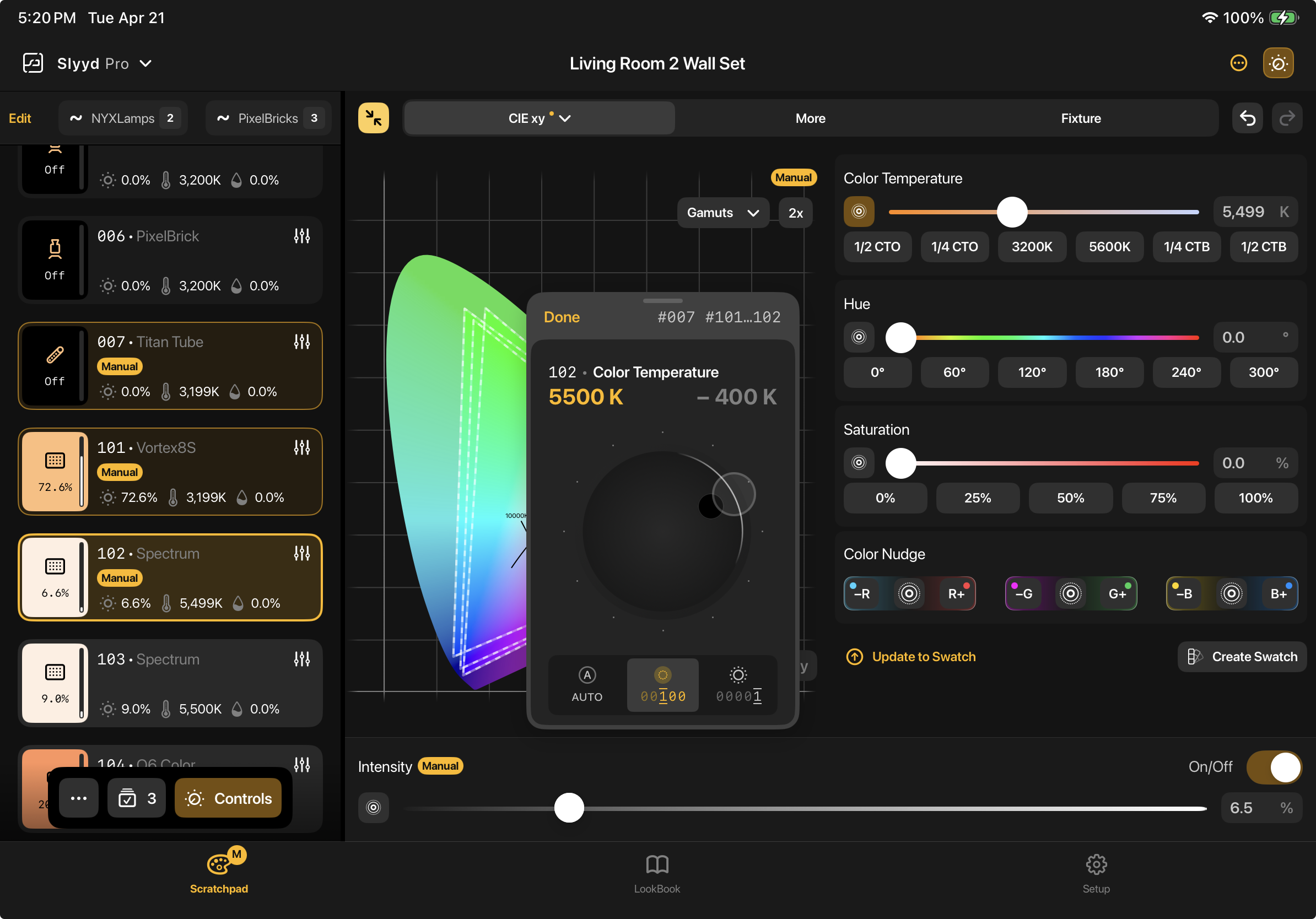
Fast - Each step of the Encoder changes the value by the number shown at the bottom of the Fast option. This number changes based on the range of the capability being manipulated. For example, in the screenshot below, each step for color temperature increases or decreases the value by 100. When the Encoder is controlling intensity, which has a much smaller range, each step will change the value by 10. Fast is a great option to adjust values quickly, while always landing on whole numbers.
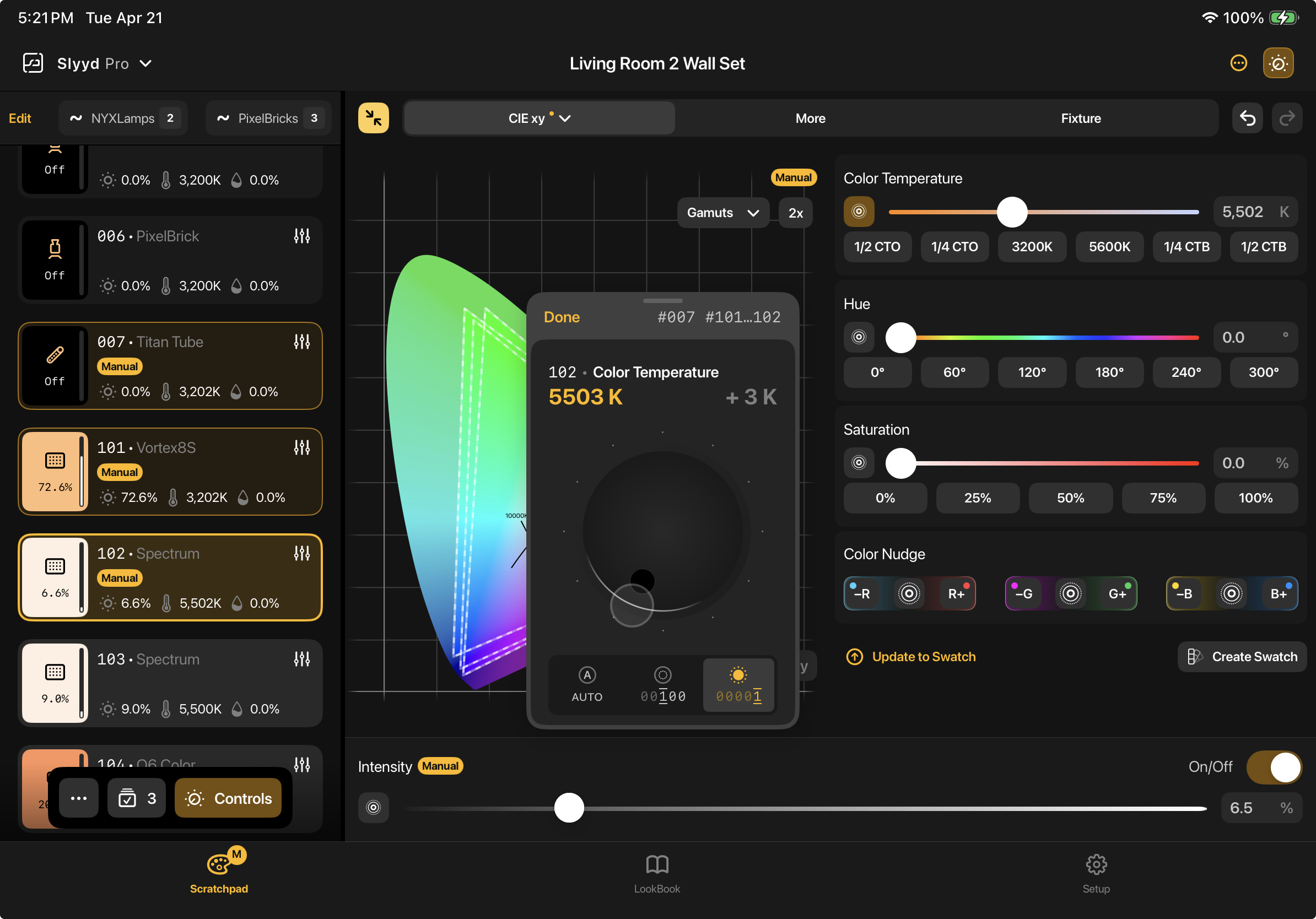
Slow - Each step of the Encoder changes the value by the smallest amount possible for that capability. For example, in the screenshot below, each step for color temperature changes the value by 1, where each step for intensity changes the value by 0.1. Same as for Fast, the amount of change for each step is displayed at the bottom of the Slow button, and changes based on the range of the capability being controlled. Slow is most useful when a precise value needs to be reached.
Color Nudge Buttons
The Color Nudge buttons can be used to nudge the color of all selected fixtures along three different color axis: ±red, ±green, and ±blue. This answers the popular request for green-tint controls, with red and blue controls thrown in for free.
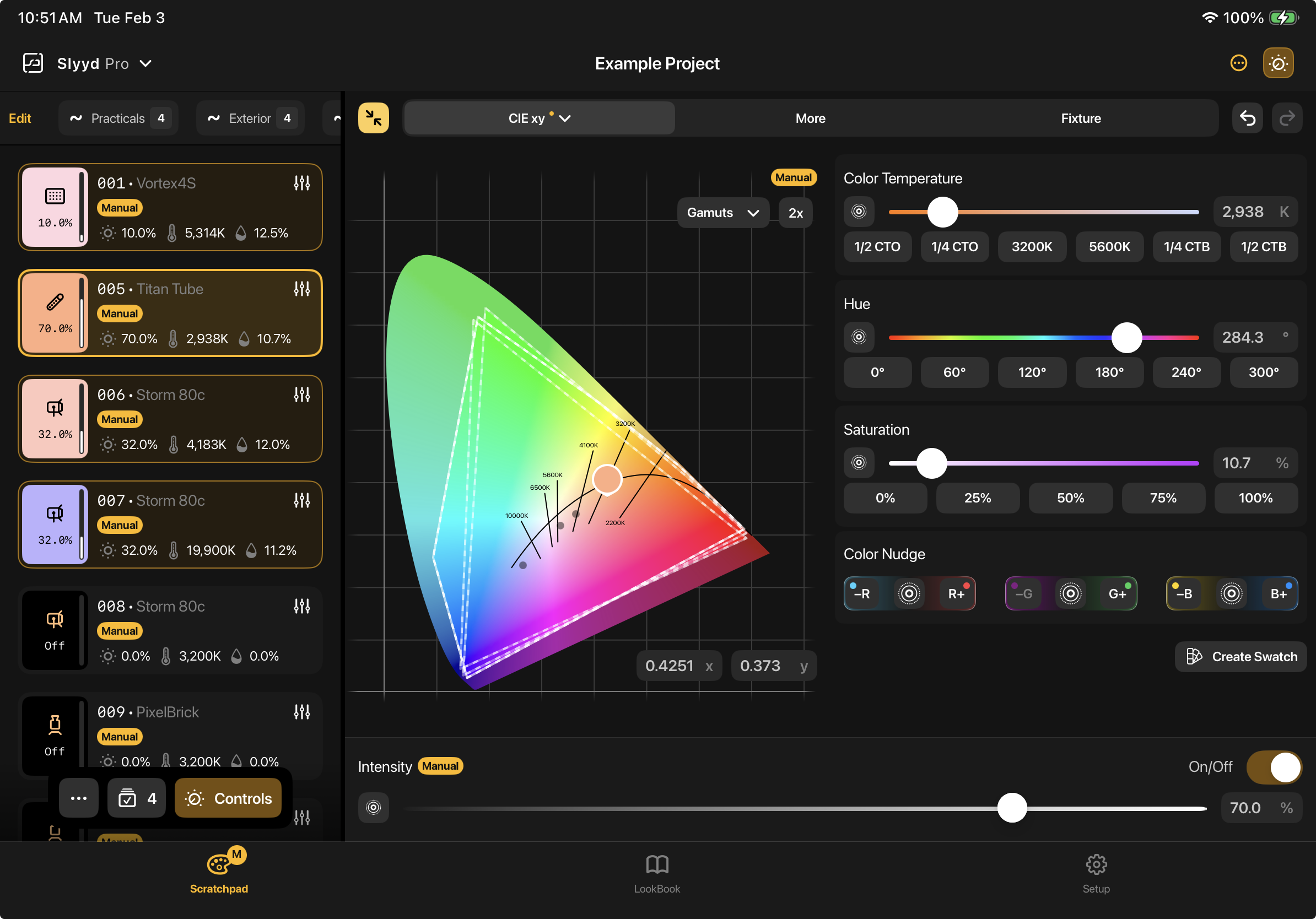
The Color Nudge buttons can be found underneath the Control Panel’s saturation slider on the CIE xy diagram. To make all selected fixtures less green and more magenta, keep tapping the ‘-G’ button until the desired color is reached. To make the selected fixture more blue and less yellow, tap the ‘B+’ button.
The Relative Encoder can be used with each color axis by tapping the Relative Encoder button for the desired axis. Since the Color Nudge buttons do not have an associated slider, there is no current value displayed, only the delta value appears when the Encoder is moved.